 SnapPress
WordPress "You Do Not Have Upload Permission" Error: How to Fix It
Quick answer: The error comes from your WordPress server, not from the iPhone app, browser, or script making the request. The two most common causes are: (1) the user behind your Application Password lacks the upload_files capability, or (2) a security plugin / WAF is blocking /wp-json/wp/v2/media before WordPress evaluates the request. Promote the user to Author (or any role that includes upload_files), or exempt the media endpoint from the offending firewall rule, and uploads work immediately. For a wider view of all upload failures (not just permission errors), see our companion guide Cannot Upload Images to WordPress: 8 Causes and Fixes.
Verified against WordPress 6.7 on June 2, 2026. Updated July 22, 2026 with a fifth root cause covering emergency security patches, and July 30, 2026 with a sixth root cause: Application Passwords disabled site-wide, measured on a live site.
Quick Diagnosis: What the Response Tells You
Before changing anything, look at the HTTP response your client receives. Each combination of status code and error body points to a different root cause.
| HTTP status | Error code | Likely cause | First step |
|---|---|---|---|
| 403 | rest_cannot_create | User role lacks upload_files | Change role to Author or higher (see Root Cause 1) |
| 401 | rest_invalid_authentication | Application Password wrong or revoked | Regenerate Application Password (see Root Cause 4) |
| 403 | HTML page, no JSON | Security plugin or WAF blocked the request | Check Wordfence / iThemes / Cloudflare event log |
| 503 / timeout | (no body) | WAF or rate limiter dropped the connection | Inspect Cloudflare or origin firewall logs |
| 200 | HTML page, not JSON | WP REST API disabled by plugin | Disable "Disable REST API" or equivalent plugin |
| 401 | rest_not_logged_in | Application Passwords disabled site-wide | Check authentication in /wp-json/ (see Root Cause 6) |
That last row is the one people miss. rest_not_logged_in doesn't mean "wrong password" — it means WordPress never saw any credentials at all, and regenerating the password won't change the outcome. Root Cause 6 covers it.
How the Error Actually Reaches Your Client
When a client uploads a photo to WordPress, it makes a POST request to /wp-json/wp/v2/media. The request carries an Authorization header with your username and an Application Password — it's a token you generate in Users -> Profile -> Application Passwords, a WordPress core feature since version 5.6 (official integration guide).
WordPress core then runs a permission check before accepting the file. (If you would rather skip Application Passwords entirely, the SnapPress Connect plugin uses a QR-pair flow that side-steps role-related upload issues for our users.) The relevant logic in WP_REST_Attachments_Controller::create_item_permissions_check() is:
if ( ! current_user_can( 'upload_files' ) ) {
    return new WP_Error(
        'rest_cannot_create',
        __( 'Sorry, you are not allowed to upload media on this site.' ),
        array( 'status' => rest_authorization_required_code() )
    );
}
If the user behind the Application Password doesn't have the upload_files capability, WordPress returns HTTP 403 with a JSON body containing "code": "rest_cannot_create". Your client receives that response and surfaces it as "You do not have upload permission."
This means the message is literal: WordPress is telling you the user isn't allowed to upload. The next step is figuring out why. The full list of role capabilities is documented on the official WordPress Roles and Capabilities page.
Root Cause 1: The User Role Lacks upload_files
This is the most frequent cause we observe in SnapPress support cases. WordPress has five default roles, and only some of them can upload media:
| Role | Can upload media? |
|---|---|
| Administrator | Yes |
| Editor | Yes |
| Author | Yes |
| Contributor | No |
| Subscriber | No |
If your Application Password belongs to a Contributor or Subscriber, every upload attempt will fail with the permission error, even though authentication succeeds (the password itself is valid; it just doesn't buy enough access).
How to check the role
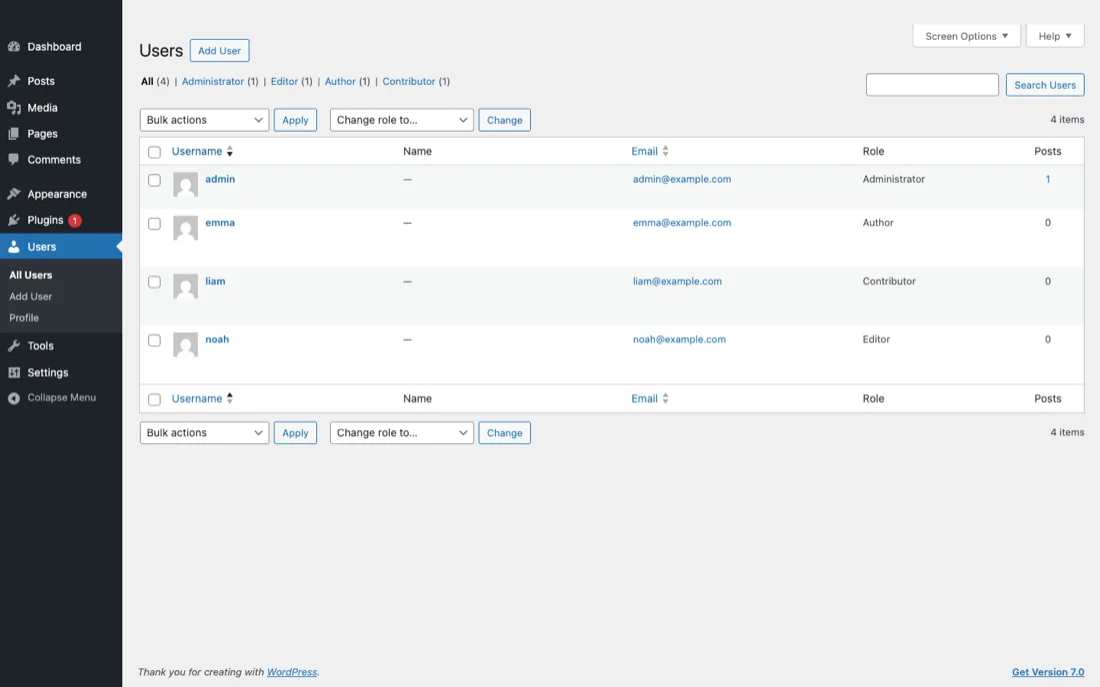
- Log in to your WordPress admin at
https://your-site.example/wp-admin/. - Open Users -> All Users.
- Find the user whose Application Password you put into the client app.
- Look at the Role column.
If the role is Contributor, Subscriber, or anything custom that doesn't include upload_files, that's your problem.
How to fix it (least-privilege first)
The safest fix is to promote the user to Author. Author is the minimum default role that includes upload_files, plus the ability to create and publish the user's own posts. It can't manage other users, plugins, or settings, so it's the recommended choice when only the upload workflow is required.
Promote to Editor if the user also needs to edit and publish posts from other authors, or Administrator only when the user genuinely needs full site control (for example, a single-owner site you manage yourself). After changing the role, generate a fresh Application Password under the now-correct user and update the client app. The fresh password is recommended but not strictly required; it eliminates the "stale credential" hypothesis.
What if the role is custom?
If your site uses a role plugin like Members or User Role Editor, the named role may not match the defaults. Open the role editor, find the role assigned to your user, and confirm the upload_files checkbox is enabled. Save and retry. Custom roles are also where most permission regressions hide; if uploads once worked and silently stopped working after a plugin update, this is the place to start. For multi-user sites, the cleanest approach is a dedicated custom role with upload_files plus the minimum posting capabilities you actually need.
Root Cause 2: A Security Plugin Is Blocking the REST API
If your user role already includes upload_files and uploads still fail, the next suspect is a security plugin intercepting the REST API request before WordPress core sees it. The usual suspects:
- Wordfence — firewall rules can match unusual Authorization headers; Rate Limiting can throttle REST traffic.
- iThemes Security / Solid Security — REST API hardening options can block
/wp-json/wp/v2/*from anything other than a logged-in browser session. - Disable REST API — the plugin literally named that blocks all REST endpoints by default; you must whitelist
/wp/v2/mediafor app uploads to work. - SecuPress, Shield Security, and similar plugins have equivalent settings.
When one of these blocks the request, the client sees the same "no upload permission" symptom because the plugin returns a 403 that resembles WordPress's own error. The difference is that core's current_user_can() check never runs.
Wordfence specifics
Two settings are worth checking. Open Wordfence -> All Options -> Firewall Options:
- Brute Force Protection: aggressive lockout settings can ban an Application Password after a single retry.
- Rate Limiting: thresholds for "If anyone's requests exceed..." apply to REST traffic too. A mobile app retrying failed uploads can trip these.
If you suspect Wordfence, open Wordfence -> Tools -> Live Traffic and trigger an upload from the client. If the request is blocked, the reason appears in the log entry with the rule that fired. The full firewall reference is at wordfence.com/help/firewall/.
iThemes Security / Solid Security specifics
Solid Security has moved its REST API hardening between releases. In recent versions, look under Security -> Settings -> Advanced -> WordPress Tweaks for the REST API option (older builds placed it under Tools). The two states you care about are:
- Default (REST API enabled) — what app uploads need.
- Restricted — limits REST endpoints to logged-in browser sessions; Application Password requests can fail here.
Switch to Default if you can, or whitelist /wp/v2/media explicitly. The exact label may differ by version; refer to the Solid Security documentation for your release.
How to diagnose
Deactivate suspect plugins one at a time and retry the upload between each. The plugin whose deactivation makes uploads succeed is the culprit. Once identified, find the specific setting blocking the REST API and exempt /wp-json/wp/v2/media from it. Every plugin in the list above supports per-endpoint exemption in some form, though the menu paths vary by version.
Root Cause 3: A WAF Is Blocking the Request
If your site sits behind a web application firewall (Cloudflare WAF, Sucuri, AWS WAF, BunkerWeb), the WAF can reject the upload request before it ever reaches your WordPress server. Cloudflare in particular has WAF managed rules that target large multipart POST bodies and unusual Content-Type combinations, both of which a media upload uses. See Cloudflare's WAF documentation for the rule catalog.
Symptoms vary, but typically you get one of:
- HTTP 403 with a Cloudflare error page in the response body.
- HTTP 503 or a timeout, with no error body at all.
- HTTP 200 with an HTML response instead of JSON.
Cloudflare-specific narrow fix
Don't blanket-disable Cloudflare's managed rules. Instead, identify the specific rule that fired:
- Open the Cloudflare dashboard and go to Security -> Events (formerly Firewall Events).
- Trigger a failing upload from your client.
- Filter events by host or by the URI
/wp-json/wp/v2/media. The blocking rule appears with its ruleset ID and rule ID. - Create a custom rule under Security -> WAF -> Custom Rules that skips only that specific managed rule for the upload endpoint:
(http.request.uri.path eq "/wp-json/wp/v2/media") and (http.request.method eq "POST")Set the rule action to "Skip" targeted at the specific ruleset / rule you identified, not all managed challenges. Place the rule above any "Block" rules in priority. This keeps protection on for the rest of /wp-json/ while allowing legitimate media uploads through.
Root Cause 4: Authentication Failure or Revoked Application Password
Application Passwords don't have a built-in expiration; once issued, they remain valid until manually revoked. So the symptom here is usually HTTP 401 with rest_invalid_authentication, not the 403 permission error. But it's worth checking when nothing else fits:
- Open WordPress admin -> Users -> Profile -> Application Passwords.
- Confirm the password you registered in the client app is still listed.
- If it was removed (manually, by a security plugin, or by a password change event), generate a new one and update the client.
- Confirm your site is reachable over HTTPS. WordPress strips the Authorization header on plain HTTP for security; an http-to-https mismatch can produce intermittent 401s.
- Confirm no security plugin or custom code has disabled Application Passwords via the
wp_is_application_passwords_availablefilter.
Some security plugins automatically revoke Application Passwords on certain events (password changes, role changes, suspicious activity). If your role was recently changed, that alone may have revoked existing passwords. Regenerating is a one-minute fix.
Root Cause 5: An Emergency Security Patch Changed the Rules Overnight
The four root causes above assume something changed that you (or someone with access to your site) can point to. But we increasingly see a fifth pattern in SnapPress support requests: uploads worked reliably for weeks or months, then failed with rest_cannot_create from one day to the next, with no deliberate configuration change on the site owner's part.
The trigger in these cases is usually an emergency update the site owner didn't initiate directly. When WordPress core discloses a critical vulnerability, two things tend to happen within hours: WordPress itself ships a security release, and security-plugin vendors (Wordfence, iThemes/Solid Security, and others) push updated firewall rules to every active install, often via automatic background updates. A recent example: on July 17, 2026, WordPress disclosed a critical REST API vulnerability (nicknamed "wp2shell," CVE-2026-63030) and shipped WordPress 6.8.6 / 6.9.5 / 7.0.2 the same day; major WAF vendors published new REST API firewall rules within hours of the disclosure.
These emergency rules are usually scoped narrowly (in that case, to a single batch-processing endpoint), but broader or more conservative firewall configurations can incidentally catch other REST API traffic too, including /wp-json/wp/v2/media. Separately, some security plugins ship with a literal "disable Application Passwords" switch (in Wordfence: Firewall -> All Firewall Options -> Brute Force Protection -> Disable WordPress application passwords) that can be toggled on as part of a hardening update, which produces exactly the rest_cannot_create symptom described in Root Cause 1, even though the user's role never changed.
How to check if this is what happened to you
- Note the exact date uploads started failing.
- In WordPress admin, go to Dashboard -> Updates and check your WordPress core version and update history against that date.
- Check your security plugin's changelog or update log for a release around the same date — most plugins show this under their own settings page or in Plugins -> Installed Plugins.
- If you use Wordfence, confirm Disable WordPress application passwords (under Brute Force Protection, in Firewall Options) is unchecked.
- If a plugin update lines up with the failure date, temporarily roll back or deactivate it to confirm, then re-enable it with the specific REST API restriction turned off rather than leaving it deactivated.
This root cause doesn't replace the first four — it explains why a site that was correctly configured yesterday can fail today. The underlying fix is still one of Root Causes 1 through 4; this section just points you to the right one faster when nothing changed on purpose.
Root Cause 6: Application Passwords Are Disabled Site-Wide
The five causes above all assume that Application Password authentication itself is functioning. There's a sixth case where it isn't, and it's the most confusing one to be stuck in, because everything you try fails identically. Typing the password by hand fails. Pasting it fails. Scanning a QR-pair code fails. Regenerating the password and starting over fails. Promoting the user to Administrator fails.
That pattern is the tell. The site isn't rejecting your credentials — it's refusing to process credentials at all.
The one-command diagnosis
WordPress publishes which authentication methods a site accepts in the REST API root. Open https://your-site.example/wp-json/ in a browser and look for the authentication field, or read it directly:
curl -s https://your-site.example/wp-json/ \
  | python3 -c "import json,sys; print(json.load(sys.stdin)['authentication'])"

# enabled  -> {'application-passwords': {'endpoints': {'authorization': '...'}}}
# disabled -> []
A healthy WordPress site lists application-passwords along with its authorization endpoint. If the field is empty, the site is telling every client that no authentication method is available. No app can connect, and no amount of credential re-entry will change that.
A second request confirms it from the other direction. Send deliberately invalid credentials to a route that requires authentication:
curl -s -u 'diagnostic:deliberately-invalid' \
  https://your-site.example/wp-json/wp/v2/users/me

# {"code":"rest_not_logged_in", ...}   credentials never reached WordPress
# {"code":"incorrect_password", ...}   credentials were processed (just wrong)
The distinction matters. incorrect_password means WordPress parsed your Authorization header and disagreed with its contents — an ordinary credential problem. rest_not_logged_in means the header was never processed at all, so the request ran as an anonymous visitor. Anonymous visitors can't create media, which is why the visible symptom is often the rest_cannot_create message from Root Cause 1 even though the user's role is perfectly fine.
Confirming it in the admin screen
Log in to WordPress and open Users -> Profile, then scroll to the bottom. If the feature is available, you'll see an Application Passwords section with a "New Application Password Name" field. If that section is missing entirely, or shows a notice saying application passwords aren't available, the feature has been switched off for the whole site.
What switches it off
- A security plugin setting. Wordfence has an explicit "Disable WordPress application passwords" checkbox, but it's far from the only one — Solid Security, All In One WP Security, Sucuri, and Shield Security ship comparable hardening switches. Don't stop looking just because you don't run Wordfence.
- Your hosting provider. Managed hosts sometimes disable the feature platform-wide through a must-use plugin in
wp-content/mu-plugins/, which never appears in the normal Plugins list and can't be deactivated from the dashboard. This is the hardest variant to find, and it explains how uploads break on a site whose owner genuinely changed nothing: the change happened one layer below them, often as part of a hardening sweep following a WordPress security release. - Custom code. Any theme or plugin can return false from the
wp_is_application_passwords_availablefilter. Search your codebase for that filter name. - Non-HTTPS sites. WordPress only offers Application Passwords over HTTPS. If your site still serves plain HTTP, or terminates TLS in a way that leaves
is_ssl()false, the feature stays unavailable.
In one case we diagnosed in July 2026, a SnapPress user's store had been uploading photos reliably for months and then stopped. Wordfence wasn't installed. The REST API was fully reachable: /wp-json/ and /wp-json/wp/v2/types/post both returned 200, so nothing was being firewalled. The only anomaly was an empty authentication field on a LiteSpeed-hosted site — which accounted for every symptom at once, including why both manual entry and QR pairing failed in exactly the same way.
How to fix it
- Switch the setting back on in whichever security plugin owns it, then generate a fresh Application Password and reconnect the app.
- If no plugin setting explains it, ask your host directly whether Application Passwords are disabled at the platform level, and inspect
wp-content/mu-plugins/if you have file access. - If you need it working immediately and can't locate the source, force the feature back on from a must-use plugin or your theme's
functions.php:
add_filter( 'wp_is_application_passwords_available', '__return_true', 999 );The priority argument (999) is deliberate: it makes your filter run after whatever disabled the feature. Treat this as a targeted override rather than a substitute for finding the cause — if a host disabled the feature deliberately, you want to know why before you overrule them.
Confirming the Fix from the Command Line
Once you have applied a fix, you can verify uploads work without involving the client app at all. From any machine with curl, run:
curl -u 'your-username:your-application-password' \
  -X POST \
  -H 'Content-Disposition: attachment; filename=test.jpg' \
  -H 'Content-Type: image/jpeg' \
  --data-binary @test.jpg \
  https://your-site.example/wp-json/wp/v2/media
A successful upload returns HTTP 201 and a JSON body that includes the new media item's id, source_url, and media_details. Anything else points back to the diagnostic table at the top of this article, and the response body usually tells you which row applies.
If you can't run curl, the same test can be done from Postman or any HTTP client that supports Basic authentication and multipart form data. The endpoint, credentials, and expected response are identical.
Why a Mobile App Can't Fix This For You
It's tempting to assume an upload bug must be in the app, because the app is the visible part of the chain. But the WordPress REST API is the authoritative gatekeeper for what any client (browser, iOS app, Zapier, command line) is allowed to do. The app's job is to send a well-formed request with valid credentials and surface the response. If WordPress says "no upload permission," changing the app can't make the answer change. The fix has to happen on the WordPress side: role, plugin settings, WAF rules, or Application Password.
This is by design and it's a strength of the REST API model. The same checks protect your site whether someone uses a phone app, a desktop client, or writes a custom script. For alternatives that avoid the REST API entirely, see how to upload to WordPress without Jetpack; for HEIC-specific upload pitfalls (a related but distinct failure mode), see our HEIC and WordPress guide.
Summary Checklist
- Read the HTTP status code and error code from the actual response. Match against the diagnostic table at the top.
- Check the WordPress user role. It must include
upload_files(Author or higher among the defaults). - If the role is correct, deactivate security plugins one at a time and retry uploads.
- If no plugin is the cause, check your WAF event log; add a narrow rule exception for
/wp-json/wp/v2/mediaonly for the specific firing rule. - Confirm the Application Password is still listed in the user's profile and your site is on HTTPS; regenerate if needed.
- Verify end-to-end with curl before returning to the client app.
- If nothing was changed deliberately, compare the failure date against your WordPress core and security plugin update logs — an emergency patch is the most likely explanation.
- If every credential you try fails the same way, read the
authenticationfield in/wp-json/. An empty value means Application Passwords are disabled site-wide and nothing you do in the app can succeed until that is reversed.
Following this order resolves the majority of "no upload permission" reports we see from SnapPress users. The error message is doing its job; it just needs the right context to act on.
Frequently Asked Questions
- Why does WordPress return 'You do not have upload permission' to my iPhone app?
- The REST API endpoint
/wp-json/wp/v2/mediarequires the WordPress user to hold theupload_filescapability. Subscriber and Contributor roles don't have it. If your iPhone app authenticates as a user in one of those roles, every upload attempt returns HTTP 403 withrest_cannot_createas the error code. Promoting the user to Author (or any role that includesupload_files) resolves it. - I'm the site administrator and I still get 'no upload permission'. What's happening?
- When the user role is correct, the next likely cause is a security plugin or WAF rule that blocks the REST API. Wordfence, iThemes Security, Solid Security, and "Disable REST API" plugins all have settings that can reject non-browser REST traffic. Cloudflare WAF rules targeting
/wp-json/have the same effect. Use your firewall's event log to find the specific blocking rule, then exempt only that rule for/wp-json/wp/v2/media. - Does the WordPress Application Password give the same role as the user it belongs to?
- Yes. Application Passwords are issued per user, and any request authenticated with one runs as that user with that user's exact capabilities. If the underlying user is a Subscriber, the Application Password can't upload, even if it was generated successfully. Application Passwords don't have a built-in expiration; they remain valid until manually revoked.
- How do I confirm the upload_files capability from a terminal?
- Run curl with
-u username:application-passwordand POST to/wp-json/wp/v2/mediawith a small test image. HTTP 201 with a JSON body containing the new media ID means uploads work. HTTP 403 with coderest_cannot_createmeans the role lacksupload_files. HTTP 401 withrest_invalid_authenticationmeans the Application Password is wrong or revoked. HTTP 403 from a non-WordPress response body (HTML error page, Cloudflare challenge) means an upstream filter is blocking the request before WordPress sees it. - Should I just promote the user to Administrator?
- Only as a last resort, and only for sites you fully control. The principle of least privilege says you should give the user the smallest role that grants
upload_files, which is Author. Reserve Administrator for accounts that actually need to manage settings, plugins, or other users. A dedicated custom role with onlyupload_filesplus posting capabilities is even safer for shared sites. - Uploads worked fine for months and suddenly stopped. Nothing changed on my end. What happened?
- The most common trigger for a sudden, unexplained permission error is an emergency security update that shipped without your involvement: a WordPress core security release, or a firewall rule pushed automatically by your security plugin. These patches sometimes tighten REST API or Application Password behavior as a side effect of closing a vulnerability. Check your WordPress version and your security plugin's changelog for updates around the date uploads stopped working; if one landed within a day or two of the failure, that's your prime suspect.
- How can I tell whether Application Passwords are disabled on my site?
- Open
https://your-site.example/wp-json/in a browser and look at theauthenticationfield. A healthy site advertisesapplication-passwordstogether with an authorization endpoint. If that field is empty, Application Passwords are disabled site-wide, and no app can authenticate no matter how many times you regenerate the password. A second check confirms it: send a request with deliberately invalid credentials to/wp-json/wp/v2/users/me. The error coderest_not_logged_inmeans credentials aren't being processed at all, whileincorrect_passwordmeans they are being processed and simply wrong.
Send iPhone photos straight to WordPress
SnapPress uploads up to 20 photos at once from your iPhone straight to the WordPress media library, converting HEIC to JPEG on the device. No Jetpack and no WordPress.com account — it authenticates with a standard WordPress Application Password. Free for 10 photos a month.
Two steps to start: install the free "SnapPress Connect" plugin on WordPress, then install the iPhone app and pair them with a QR code.
About the author

Founder & CEO, 37Design
Founder & CEO of 37Design, a web and AI consultancy based in Tokyo, Japan. Built SnapPress to eliminate the pain of uploading dozens of iPhone photos to WordPress — one by one.
37design.co.jp